Project-Level Playbooks
Last updated: September 18, 2026
Background
Project-level playbooks give project teams a consolidated summary of their contractual obligations across every document in a project — not just one. Rather than running separate playbooks on individual PDFs and piecing together the full picture manually, you define the topics that matter to your team (payment terms, safety requirements, change order procedures, etc.) and the playbook pulls relevant information from contracts, specs, drawings, safety manuals, change orders, and anything else uploaded to the project. When documents conflict on the same topic, the playbook flags it. When new documents are added and the playbook is re-run, changed topics are highlighted so the team always knows what's different. Use project-level playbooks at project kickoff to align the team on obligations across all documents, and re-run throughout the project as it evolves.
Things to Consider
Project-level playbooks are a separate feature from single-document playbooks. Single-document playbooks still work as they do today and are not affected.
Run with executed documents only — signed contracts, finalized specs, issued-for-construction drawings (when available), executed change orders, and amendments. Unsigned drafts, bid documents, and superseded versions should be archived before running, otherwise the playbook may surface outdated language alongside current terms, leading to noise and poor results.
The playbook pulls from all documents in the project by default. There is no in-app document selection. If you need to limit what documents the playbook looks at, contact your CS team.
Playbook templates are configured by your CS team. You cannot create or edit your own templates. Two default templates are available out of the box: a GC Project Playbook and a General Trade Sub Playbook.
Playbooks do not run automatically. You trigger every run and re-run manually.
No email notifications — you'll receive an in-app notification when a run completes.
There is no version history stored in the app. Export the playbook to PDF before re-running if you need a record of the previous version.
The playbook surfaces conflicts between documents but does not determine which document controls. Your team resolves conflicts by reviewing the Order of Precedence and citations.
Run time increases as the number of documents in the project grows.
Project-level playbooks are mobile responsive.
Steps
Adding a Project-Level Playbook
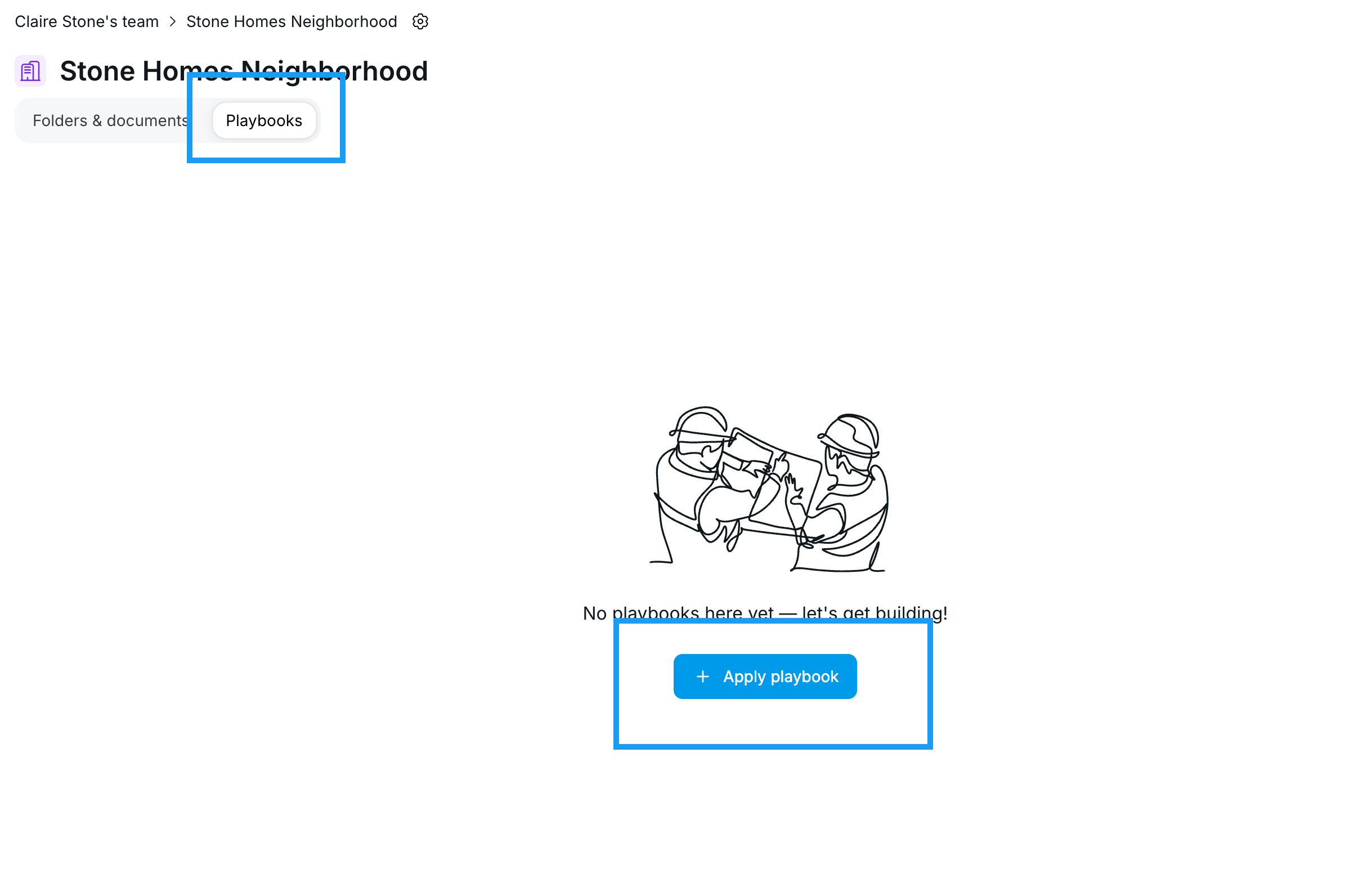
Navigate to your project and open the Playbooks tab.
Click + Apply Playbook on the playbook card.
In the modal, select a playbook template from the available list.
Templates already applied to this project will show as "Applied."
The playbook run begins. You'll receive an in-app notification when it's complete.
Note: There is no email notification for playbook completion.
Reading a Playbook
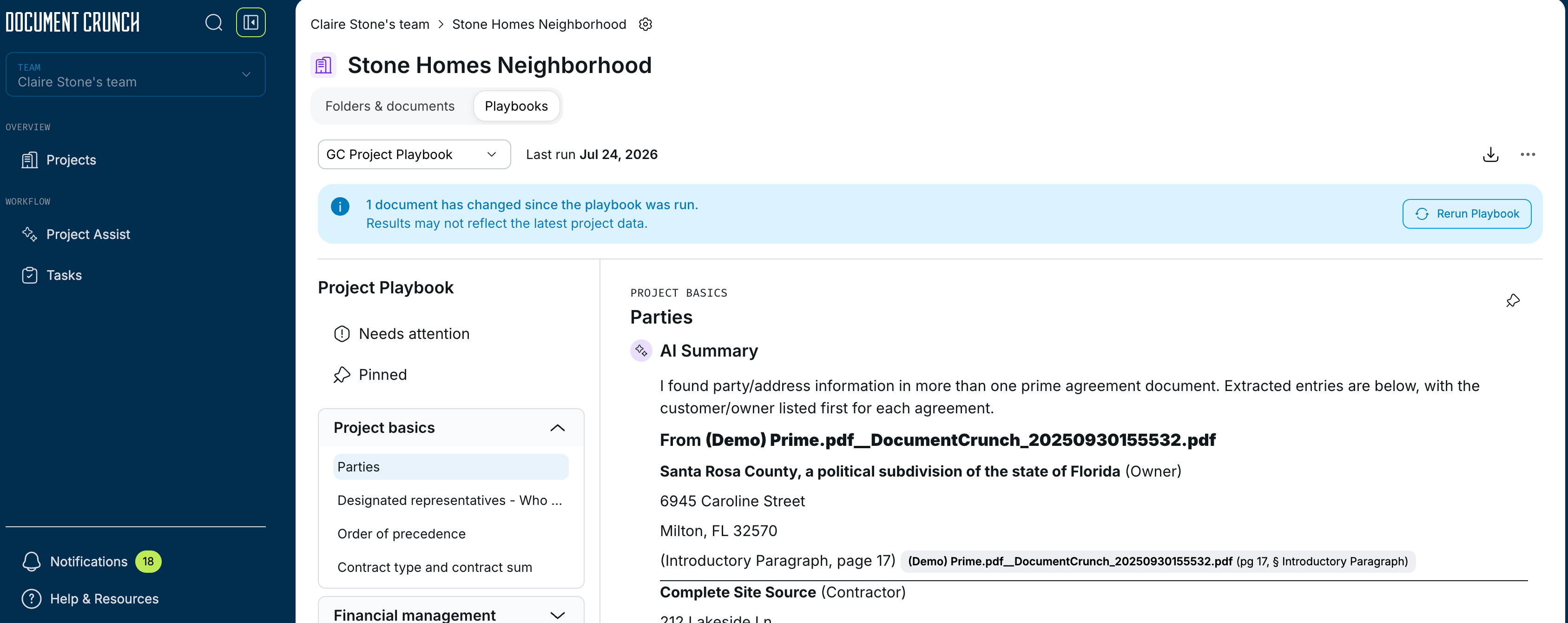
Open the playbook from the Playbooks tab. You'll land on Project Basics with the first topic expanded.
Sections are listed in the left rail; topics and content display on the right.
Click any section in the left rail to jump to it. Multiple topic accordions can be open at the same time.
Each topic shows a synthesized summary with inline source citations. A sources section at the bottom lists all documents referenced.
If a topic has a conflict between documents, it's flagged with a conflict indicator. Click the item to view differing information and citations from each source.
Needs Attention in the left rail shows updates for any topics that have changed since the playbook has been re-run across all sections in a single feed — not filtered by section.
Clicking a update item marks it as read and removes it from the Needs Attention feed automatically.
To pin a topic, click the pin icon in the top-right corner of the topic. Pinned items will appear in the right hand pane after clicking on the "Pinned" section — useful for items the team needs to keep top of mind throughout the project. All team members with playbook access can view pinned items.
Tip! Use pinning for high-priority watch items: an unusually high LD rate, broad indemnity language, or a contract-specified process that differs from how your team normally operates (e.g., pay apps due on the 20th instead of your usual 25th).
Compare sources side by side
Click any review item (or citation) to open the document drawer from the right.
Use the L / R buttons next to each source to load documents into the left or right pane.
Scroll and zoom each document independently — highlighted passages show the language behind the summary.
Close the drawer to return to the summary view.
Regenerating a Playbook
When new documents are uploaded to the project, the playbook is flagged as potentially out of date and prompts you to re-run.
Before regenerating, you'll be prompted to export the current playbook to PDF so you have a record of the previous version.
Note: There is no in-app version history. Export before regenerating if you need a record.
Click to confirm and the playbook regenerates using the current document set.
After regeneration, topics that changed compared to the previous run are flagged individually and will show up under the "Needs attention" section. Click any flagged topic to see the updated summary with citations, which also removes the topic from "Needs attention" section.
Exporting a Playbook
Open the playbook from the Playbooks tab.
Use the export option to download the full playbook as a PDF for sharing or offline reference.
Tip! Export the current version before re-running any time you want to preserve a snapshot of the playbook — for example, at project kickoff or after a major change order.
Deleting a Playbook
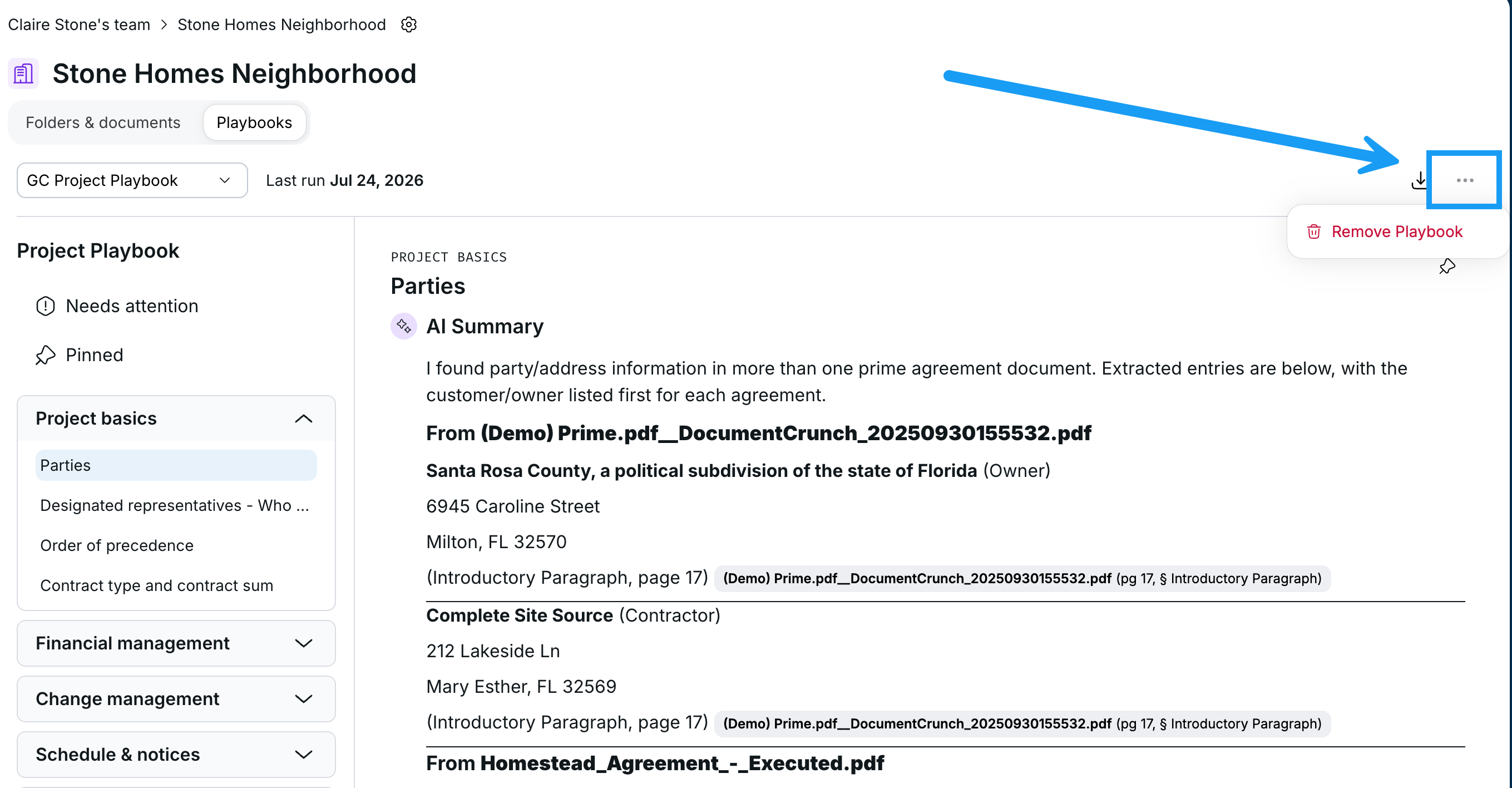
Open the playbook from the Playbooks tab
Click on the three dots to the far right, next to the download button
Click Remove Playbook
FAQ
Q: What's the difference between a project-level playbook and the playbooks I already use? Existing playbooks are tied to a single document — one playbook per PDF. Project-level playbooks pull from every document in your project, so you get a consolidated summary of your obligations across all your contract documents in one place.
Q: Do project-level playbooks replace my existing playbooks? Not currently. Single-document playbooks still work exactly as they do today. Project-level playbooks are a separate feature.
Q: What documents should I have uploaded before running a playbook? We recommend having your executed project documents in place — signed contracts, finalized specs, issued for construction drawings, and executed change orders. Archive previous versions (unsigned contracts, bid docs, earlier drafts) before running so the playbook isn't pulling from previous language.
Q: Can I have multiple project-level playbooks on one project? Yes — you can apply multiple playbook templates to the same project.
Q: Can I choose which documents the playbook pulls from? The playbook pulls from all documents in the project by default. If you have a specific need to limit scope, reach out to your CS team.
Q: Can I create or edit my own playbook templates? Not yet. Playbook templates are configured by your CS team. Reach out to CS to adjust topics or add new ones.
Q: How do I know if my playbook is out of date? When new documents are uploaded to the project, the playbook is flagged with a blue banner in the playbook tab as potentially out of date and you'll be prompted to re-run.
Q: What happens when I re-run a playbook? CrunchAI checks all topics again using the current document set. Topics that changed compared to the previous run are flagged and the summaries are updated for those items. Before regenerating, you're prompted to export the current version to PDF.
Q: Can I see previous versions of a playbook? No in-app version history is available. Export the playbook before re-running if you want a record of the previous version.
Q: What does it mean when a topic has a conflict? Different documents say different things about the same topic — for example, the contract describes one change order process but the specs describe another. The playbook shows both with citations so you can determine which applies.
Q: Does the playbook tell me which document takes precedence when there's a conflict? No. The playbook surfaces your Order of Precedence as a topic under Project Basics, but it does not automatically apply that precedence to resolve conflicts. Your team uses the precedence language and citations to determine which document controls.
Q: How long does a playbook run take? It depends on the number of documents and topics. Run time increases as the document set grows. You'll receive an in-app notification when the run is complete.
Q: Can I export the playbook? Yes — you can export the full playbook to PDF for sharing or offline reference.
Q: Can I use project-level playbooks on mobile? Yes — project-level playbooks are mobile responsive.