Sequential Workflows & Ball-in-Court Tracking
Last updated: September 18, 2026
Background
Document Crunch has always helped you find risk in a contract, but coordinating the review has meant working outside the platform, in email, SharePoint lists, and DocuSign routing sheets. That's where contracts get stuck and reviewers get skipped. Sequential Workflows brings that coordination in-house: admins build reusable, ordered Workflow Templates (for example, "Owner Contract Review: PM → Risk → Division Manager → Contracts"), users apply one to a file or project, and the workflow shows who currently owns the contract, advances as steps are completed, and logs every handoff.
Things to Consider
Template creation is admin-only. Only admins can create, edit, or manage Workflow Templates at the Org or Team level. Any user can apply an existing template.
Templates are scoped to a team. There is no org-level template and no org/team visibility setting, so teams that share a review process will each need their own template.
Coordination, not enforcement. Workflows don't hard-gate anything. Steps can be skipped, reassigned, or marked done out of order by the step assignee, the workflow creator, or an admin. The system records every override in the activity log rather than preventing it.
Skipping a step requires a reason. There are no more silent skips. When you skip a step, you must enter why it's being bypassed, and that reason posts to the activity log so there's a record of the decision.
You can complete a step with a comment. When you close out a step, you can optionally add a comment that lands in the activity log front and center, which is useful for handoff instructions.
Comments and skip reasons are threaded. Both completion comments and skip reasons post to the activity log as comment threads, so teammates can reply and discuss right in the log. Anyone you @mention gets a notification, just like everywhere else in the product.
This is a review workflow, not a signature workflow. Workflows don't collect signatures or replace DocuSign routing. Signature collection continues in your existing e-signature tool after review completes.
No conditional or threshold routing. Templates are ordered lists of steps. There's no "if over $250K, route to ERM" logic and no branching by contract type.
Individual assignees only. Steps are assigned to specific users. You can't yet assign a step to a role or group like "Legal."
Notification timing. An assignee is notified when their step starts, not in advance. Someone on step 3 hears nothing until step 2 completes, unless their step is set to run in parallel with the previous one.
Each contract is independent. There's no parent-child linking, so a workflow on an owner contract doesn't cascade to its subcontracts.
Activity log is in-app and read-only. No CSV or PDF export and no API access, so it shouldn't be relied on for legal discovery or regulatory needs.
Limits. Up to 100 steps per workflow and up to 50 assignees per step.
Steps
Part 1: Create a Workflow Template (Admins)
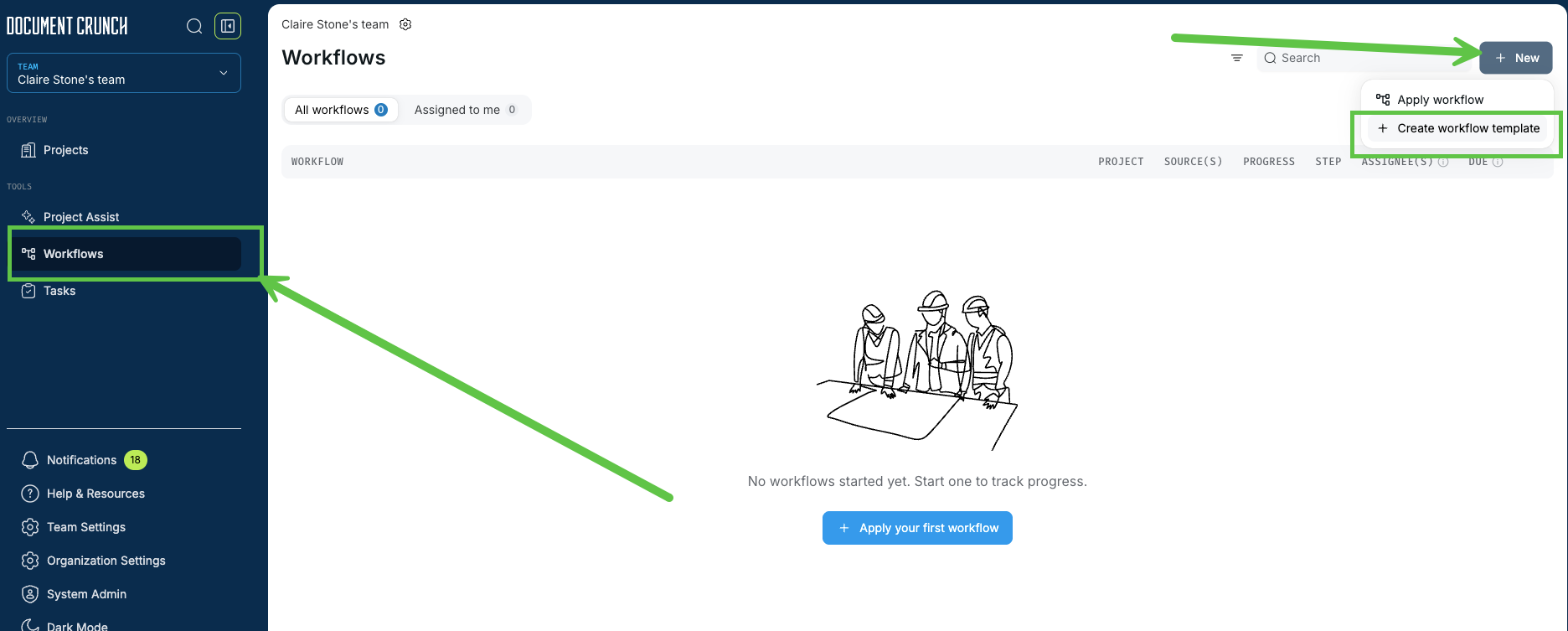
Click Workflows in the options panel on the left, and select +New > +Create workflow template.
Give your template a clear, recognizable name — for example, "Owner Contract Review," "Subcontract Review," or "Change Order Review."
Configure each step:
Step name and Action type — Review, Redline, Revise, Approve, Negotiate, Verify, Escalate, or Other.
Assignees — one or more specific users. You can fix the assignees now or leave them to be set when the template is applied.
Completion rule — All assignees must complete the step, or Any assignee completes it for everyone.
Priority — sets a default due date as an offset ("X days after the workflow is applied"), which you can adjust per step.
Source type — what the step is performed on: a Project, a Document, a Review template, or a Playbook template. For templates, you can point the step at a specific template or even specific questions.
Description (optional).
Order your steps using the up/down arrows or the drag handle. Steps run sequentially, top to bottom. To have two steps run at the same time, set a step to run in parallel with the previous step — both sets of assignees are then notified together.
Use duplicate on a step to build similar steps faster, or delete any step you don't need.
Click Save changes.
If you need to edit your template, you can do so by clicking on the gear icon in the upper left hand corner, and select which template needs to be updated.
Tip: Start with two or three templates that reflect your highest-volume contract types rather than trying to model every scenario. Because templates are flat and sequential, the simplest accurate sequence is the one people will actually follow.
Note: Because templates are scoped to a single team, standardizing a review process across multiple teams means recreating the template in each one. If you want a consistent process company-wide, document the intended step sequence and have each team's admin build it the same way.
Part 2: Apply a workflow
There are three ways to apply a workflow. Use whichever fits where you already are in the product.
From the Workflows dashboard
Click Workflows in the left panel.
Click + New → Apply Workflow.
Select the project or document you want to apply the workflow to.
From the Projects list
Click Projects in the left panel.
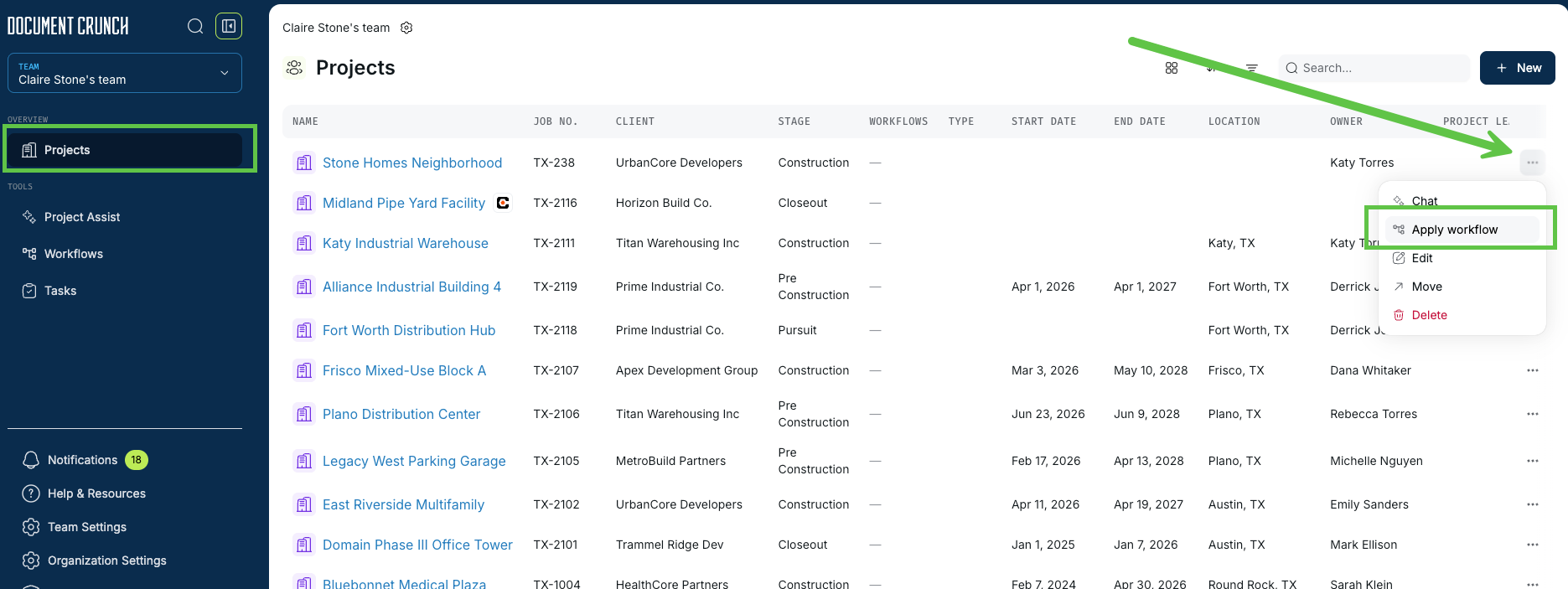
Click the three dots at the far right of the project row.
Select Apply Workflow from the menu.
From a document inside a project
Open the project.
Click the three dots at the far right of the document row.
Select Apply Workflow from the menu.
Then, in any of the three paths:
Choose the workflow template you want.
If the template leaves assignees open, set them now. You can also adjust due dates and the workflow title.
Confirm. The workflow starts at step 1, tasks are created for that step's assignees, and they're notified by in-app notification and email.
Note: Applying a template creates a full copy of it. Editing this workflow afterward will not affect the original template or any other workflow instances already in flight.
Part 3: Work Your Steps and Track the Ball in Court
When a step is assigned to you, you'll receive an in-app and email notification with a link to the record.
Open the record and complete your review as you normally would, running your checklist, using chat, and adding comments.
Mark your step complete. The workflow advances automatically and notifies the next assignee.
To add a note as you close out a step, use the dropdown next to Mark as complete and choose to complete with a comment. The comment posts to the activity log front and center, and anyone you @mention is notified. This is helpful for handoffs, for example: "@Johnny please make sure you sign off with Bob on this step."
To skip a step, enter a reason for skipping. A reason is required, and it posts to the activity log so the team can see why the step was bypassed, for example: "Johnny is out sick this week, so we're moving on without his review. Liefen covered his parts."
Check My Court at any time to see every workflow step currently waiting on you.
Use the team dashboard to see progress across every active workflow, filterable by project and status. The "With: …" indicator shows the current owner from list views, so you're never more than one click from knowing who has the ball.
If a contract is stuck, the creator or an admin can send a poke reminder to the current owner directly from the record.
Tip: Steps can be skipped, reassigned, marked done out of order, or reverted one step at a time by the assignee, the creator, or an admin. Every one of those actions is recorded in the activity log — so overrides are visible rather than silent.
Part 4: Review the Activity Log
Open the contract or task record.
Open the Activity Log.
Review the chronological, read-only record of every workflow event — template applied, step assigned, completed, skipped, reassigned, or reverted — each attributed to a user with a timestamp.
Note: The activity log is visible to anyone with access to the record. It is in-app only in this release and cannot be exported.
Working from the field
Sequential Workflows is supported on mobile web. Reviewers can check status and mark steps complete from the jobsite without needing to get back to a desk.