User Memory
Last updated: October 7, 2026
Background
User memory lets Document Crunch remember how you like to work, so you don't have to repeat yourself in every new chat. You can tell DC how detailed you want answers, whether you prefer bullet points or paragraphs, plain or technical language, and which topics you always want flagged (like liquidated damages or notice provisions). DC then uses those preferences in every chat, across all your projects. You can see, edit and delete anything DC has saved, and you can turn the feature off at any time. Your preferences belong only to you, and DC does not train on your data.
Things to Consider
Chat only. Preferences apply to single-document and multi-document chat. They don't change checklist, review, redline or compliance results.
Nothing is saved without your approval. DC may suggest a preference, but it saves nothing until you confirm.
Only you. Your preferences don't affect anyone else on your team or in your company.
New responses only. Preferences apply to new responses, not to existing chat threads.
Same preferences everywhere. You can't set different preferences for specific chats or projects. You can set rules based on context instead, like "detailed for contract language, concise for everything else."
Builds over time. At first, DC won't know much about you. It gets more useful the more you chat and save preferences.
Keep it focused. Long or complicated memories can make DC apply your preferences less consistently.
"Memory is on" notice. A small banner at the bottom of Project Assist lets you know DC is starting to learn your preferences. Its Learn more link explains how to change or turn off memory.
Steps
Turn preferences on or off
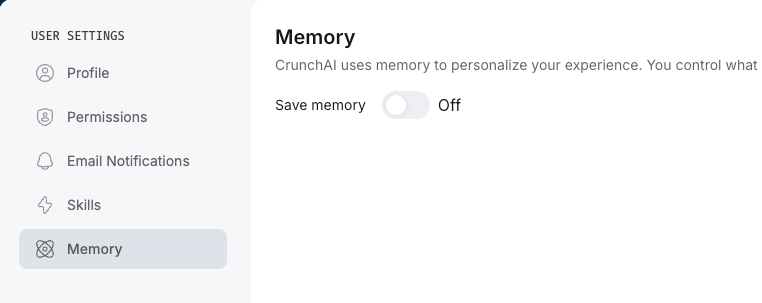
Go to your user settings by clicking on your name in the bottom left corner → My Profile → Memory .
Use the toggle to turn preferences on or off. When it's off, DC stops using your preferences and stops learning new ones. Project Assist goes back to its default behavior.
See what DC remembers
Open My Profile → Memory to see everything DC has saved, written in plain language.
Or ask in chat: "What do you know about me?"
Add or edit a preference
In chat: Tell DC directly, for example "Remember that I prefer bullet points." DC shows you what it will save and asks you to confirm.
In settings: Add, edit or delete preferences on the Preferences page. Click Optimize before you save.
Tip: Already have saved preferences in another AI tool? Paste them into chat or into your Preferences page. DC will tidy up the wording but keep what you meant.
Respond to a suggested preference
While you chat, DC may ask "Would you like me to remember this?" and show you exactly what it would save.
Click Approve to save it or Dismiss to skip it.
A visual indicator confirms when a preference is saved.
Delete a preference or start over
Delete a preference on the Preferences page, or tell DC in chat, for example "Drop the liquidated damages focus."
To stop using memory completely, turn the toggle off.