Using Skills in Crunch AI
Last updated: September 1, 2026
Open the walkthrough above to full screen for the best experience!
Background
Document Crunch can already run conflict analysis, risk registers, redlines, and version comparison — but you had to know the right prompt to get there. A skill packages one of those workflows into a single named action: invoke "Draft RFI" or "Contract Risk Review" and CrunchAI knows how to run it. Document Crunch ships a library of expert-authored global skills, on by default and invoked automatically when CrunchAI recognizes your ask. You can also create your own, and org admins can publish skills team-wide.
Things to Consider
Skills live in Project Assist.
There are three levels of skills: Premade by Document Crunch, Organization skills (created by org admins, available to everyone on the team), and Personal skills (created by any user, saved to their account only).
Personal skills can't be shared directly. To share one today, copy the instructions to a teammate and have them create the same skill. There is no cross-organization sharing.
Creating org-level skills is permission-gated. Only org admins can create and manage org skills; regular users can view them and create their own. The ability to create org skills is tied to your account's tier.
Skills don't add new AI capabilities. They package and surface what Project Assist can already do — a skill is a smarter, saved way of asking, not a new engine.
Skills don't yet use your templates. You can give a skill detailed formatting, sequencing, and layout instructions, but it won't carry over letterhead or images from a company template.
A skill only uses the documents you've selected in the chat. Narrow the selection before invoking for the most relevant results.
Skills produce deliverables (Excel, Word, or in-chat output). They do not carry the review resolution workflow — no accept/reject, comments, or task creation on a skill's output.
Skills don't run reviews and don't change how existing tools behave (redlining, version comparison, document linking).
No multi-step "daisy-chain" skills yet. Today's skills are prompt-based and run within a single chat.
Skills work on mobile, so drafting an RFI or notice or reviewing a change order can be done from the field.
The Skill Library
Skill | Use it when you want to… | Typical output |
|---|---|---|
Draft RFI | Turn a discrepancy, ambiguity, or missing detail into a submission-ready RFI, with citations to the governing documents | Word letter, or Excel RFI log for batched items |
Scope Responsibility Matrix | Determine who furnishes, installs, and coordinates work across trades — with citations and flagged gaps/overlaps | Excel matrix, or in-chat answer for a single question |
Submittal Drafting | Build a submittal log/register from the specs by division, or check a submitted item against spec requirements | Excel log, or in-chat table for reviews |
Notice Drafting | Draft a contractually compliant notice (delay, change, differing site condition, non-payment, default, force majeure), or look up the contract's notice requirements and deadlines | Word letter or email variant; table for a requirements lookup |
Contract Risk Review | Get a risk matrix, a go/no-go read, or an analysis of specific high-risk clauses (pay-if-paid, indemnity, LD caps, consequential damages) | Risk matrix table, exportable to Word/Excel |
Change Order Review | Understand allowable CO markup, caps and exclusions, force-account/T&M pricing, and the CO process | Short answer plus a rules table with citations |
Bid Spec Review | Pull estimate-ready requirements from the specs — manufacturers/approved equals, allowances/unit prices/alternates, warranties, or testing & inspection responsibility | Excel table by division |
The premade library is authored with our construction subject-matter experts and will continue to grow — treat this list as current, not final.
Steps
Let CrunchAI invoke a skill for you (automatic)
Go to Project Assist and start a new chat.
(Optional but recommended) Select which documents to chat with — for example, just the specs and the contract — and click Apply.
Ask for what you actually want in plain language — "what are the riskiest provisions in this subcontract?", "draft a delay notice for the three rain days last week", "who's responsible for compaction testing?"
When CrunchAI recognizes the intent, it invokes the matching skill and tells you which skill it used, so you always know what instructions shaped the answer.
The skill may state its assumptions and ask a few clarifying questions before it reads your documents — for example, which contract governs, who the recipient is, or which divisions to cover. This is intentional: confirming scope first is much faster than reading everything.
Confirm or correct the assumptions. CrunchAI then reads the relevant documents and produces the output.
Note: The first time you log in with skills enabled, you'll see a short intro note explaining what skills are. If you dismiss it with the X, it won't appear again — but everything it points to stays available from the Skills button.
Invoke a skill manually
In Project Assist, click the Skills button in the prompt area.
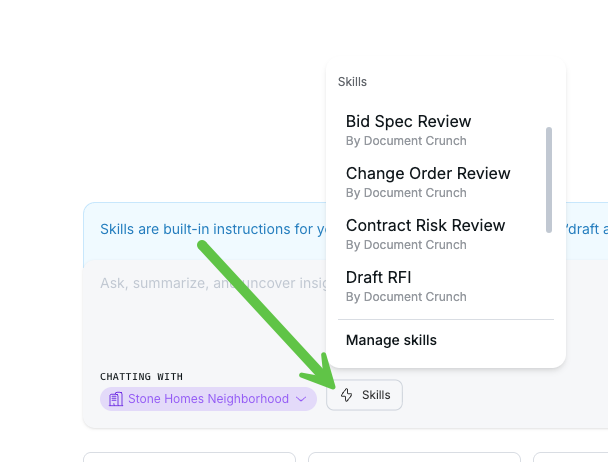
Browse the list of skills available to you. You'll only see skills you can actually run given your role and access.
Select the skill you want.
Answer the skill's clarifying questions and confirm the output format.
Tip: You can also type / in the chat to bring up your skills as slash commands and invoke one by its slug — for example, /addendum-analysis. This is the fastest route for workflows you run often.
Tip: If you're not sure a capability exists, browse the skills list first. Most users find workflows here they didn't know Document Crunch could do.
View and manage your skills
Click Manage skills at the bottom of the skills list, or go to User Settings → Skills.
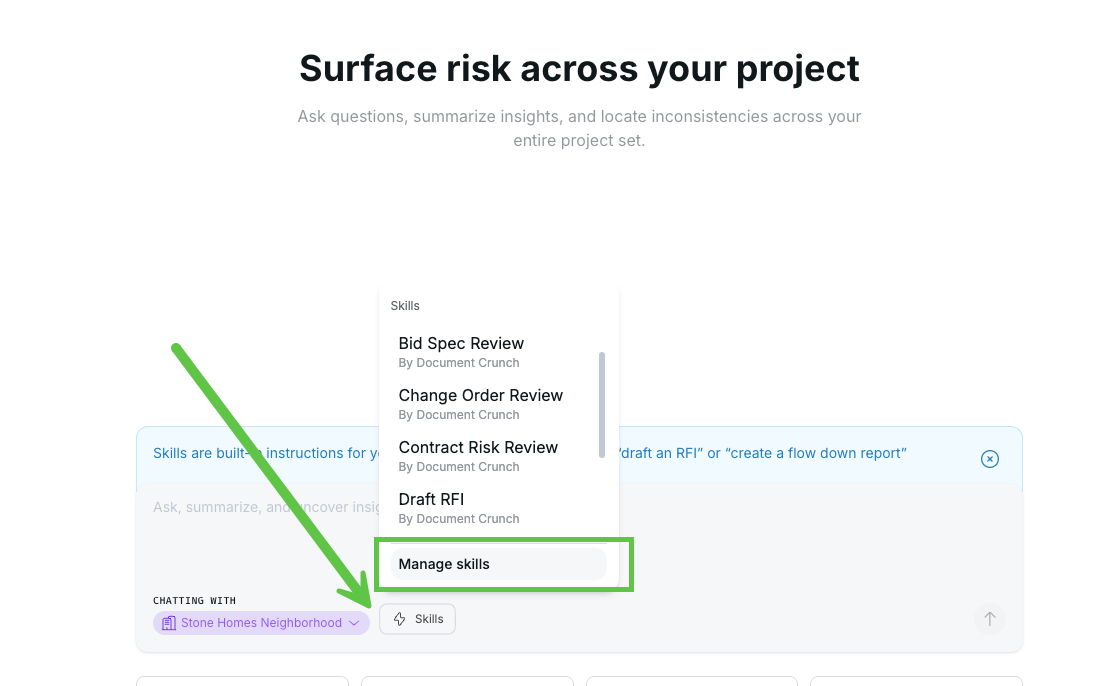
The dashboard shows Premade by Document Crunch skills, your organization's skills, and your personal skills, each with a name and description.
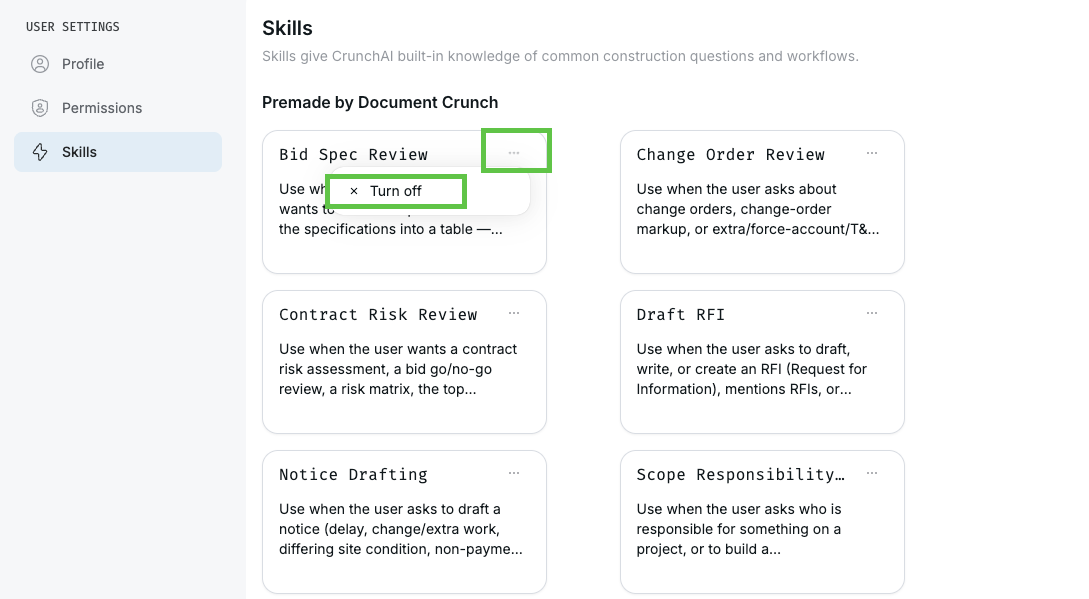
Click the three dots on any skill to enable or disable it for your sessions. Disabling a global skill only affects you — it doesn't remove it for your team.
Create your own skill
The fastest way to create a skill is to just ask for it.
In Project Assist, ask CrunchAI to create one — for example, "Create a CrunchAI skill called Addendum Analysis" — and describe what it should do and what output you want.
CrunchAI may ask a few clarifying questions, then confirms the skill was created and tells you its slug — the shortcut that appears when you type
/in chat.The skill now appears in your skills list, scoped to your personal account.
Tip: Be specific about the output you want — which fields or columns, how it should be organized, and what format (Excel, Word, in-chat table). The more precise the instructions, the more consistent the results.
Note: A skill you create is available to you only. See Share a skill below.
Edit a skill that isn't behaving right
You don't need a support ticket to fix a skill — you can tune it yourself.
From the Skills dashboard, click into a personal skill (or, if you're an org admin, an org skill).
Review the Display Name and Instructions, and edit the instructions directly. If the skill is firing at the wrong times, add a "when to invoke this skill" section describing the asks it should and shouldn't respond to.
Click Update. The revised skill is immediately available in Project Assist.
Share a skill
Personal → teammate: Copy your skill's instructions and send them to your colleague. They ask Project Assist to create a skill using that same set of instructions.
Org-wide: Org admins can create organization skills the same way — by explicitly instructing Project Assist — or through the Skills dashboard. Org skills appear for everyone on the team, which is how companies standardize things like a house notice format. The ability to create org skills depends on your account's tier and permissions.
If you want a personal skill promoted to the whole team, contact your org admin.
Troubleshooting
A skill I expected isn't in the list. You may not have access to it given your role or your account's entitlements, or it may be disabled in your own skills list. Check Manage skills first, then contact your admin or Support.
A skill asked me questions instead of just answering. That's by design. Skills confirm scope — which document, which division, whose perspective — before reading, because it produces a better answer faster. You can correct any assumption it states.
A skill fires at the wrong times, or ignores asks it should handle. If it's your own skill, open it from Manage skills and add a "when to invoke" section to the instructions. If it's a premade skill, let Support know so the instructions can be tuned.
A skill's output doesn't match my company template. Skills don't reference templates yet and won't carry over letterhead or images. You can get close by giving the skill explicit formatting, sequencing, and layout instructions.
The results feel off-target or too broad. Check which documents are selected in the chat. A skill only works with what you've selected — narrowing to the governing contract and specs usually sharpens the output considerably.
I want to accept/reject items from a skill's output. Skills produce deliverables, not resolution workflows. For issue-by-issue review with accept/reject, comments, and tasks, use a review instead.
My saved skill isn't visible to my teammates. Personal skills are private. Copy the instructions to your teammate, or ask your org admin to create it as an organization skill.
I dismissed the skills intro note and want it back. Dismissing it is permanent. Everything it referenced is available from the Skills button in Project Assist.
Skills vs. Reviews
Both help you get through contract work, but they're built for different jobs:
Reach for a review when you need to review and resolve a known set of issues with an auditable trail — each item shows how it's treated, and you can accept, reject, comment, and create tasks.
Reach for a skill when you want to act on an intent and walk away with a deliverable — an Excel table or Word document — including requests that fall outside any predefined issue list.