Signing In with Trimble Identity (TID)
Last updated: September 9, 2026
Background
Document Crunch is upgrading how you sign into your account. Instead of the current Document Crunch login, you will sign in through Trimble Identity (TID) — the same unified login used across Trimble products like Trimble Connect and ProjectSight. This change gives you one login across the Trimble platform, stronger security features such as multi-factor authentication (MFA) and enterprise single sign-on (SSO), and it unlocks deeper platform integrations going forward. Only your login method is changing — all of your projects, files, checklists, annotations, and team settings stay exactly the same. This article walks you through what to expect and the steps for each type of user.
Things to Consider
Existing (non-SSO) users must complete a one-time password reset using Forgot Password? on the new Trimble Identity login screen. This is a quick, one-time step.
During the transition, both the current Document Crunch login and Trimble Identity are active at the same time, so you can keep working normally until your account is switched over.
If you already have a Trimble Identity account (from ProjectSight, Trimble Connect, or another Trimble product), use those same credentials — no need to create a new account.
New users are invited through Trimble's invitation service. The invitation email uses standard Trimble branding and is sent from a trimble.com address on behalf of Document Crunch — this is expected and legitimate.
MFA is supported and encouraged. Whether it is required depends on your organization's Trimble Admin Console settings.
Password requirements: at least 8 characters, and at least one number, one lowercase letter, one uppercase letter, and one special character.
SSO / enterprise customers are coordinated by your Document Crunch Account Manager and your IT administrator. See the Enterprise SSO steps below.
Note: Depending on internal security systems, invitation and verification emails can be routed to Spam, Promotions, or Junk folders.
Steps
A. Existing (non-SSO) user: first sign-in after migration
This is a one-time only flow. It is the most common scenario. Document Crunch will notify you in advance with an in-app banner and this support article.
Navigate to the Document Crunch login page. You will see the new Trimble Identity screen with a Sign in with Trimble button.
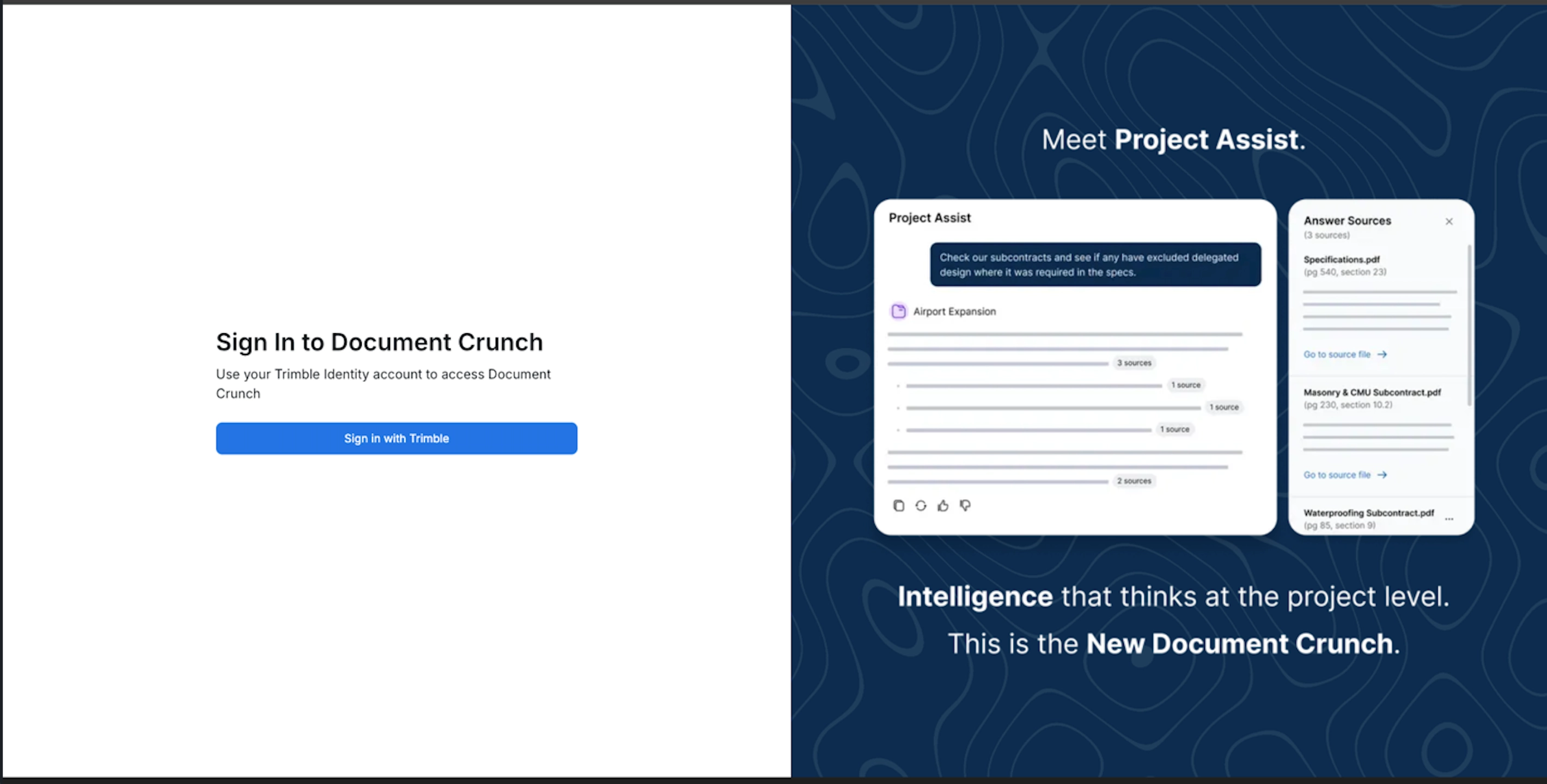
Click Sign in with Trimble. You are redirected to the Trimble Identity page. Enter your email address and click Next.
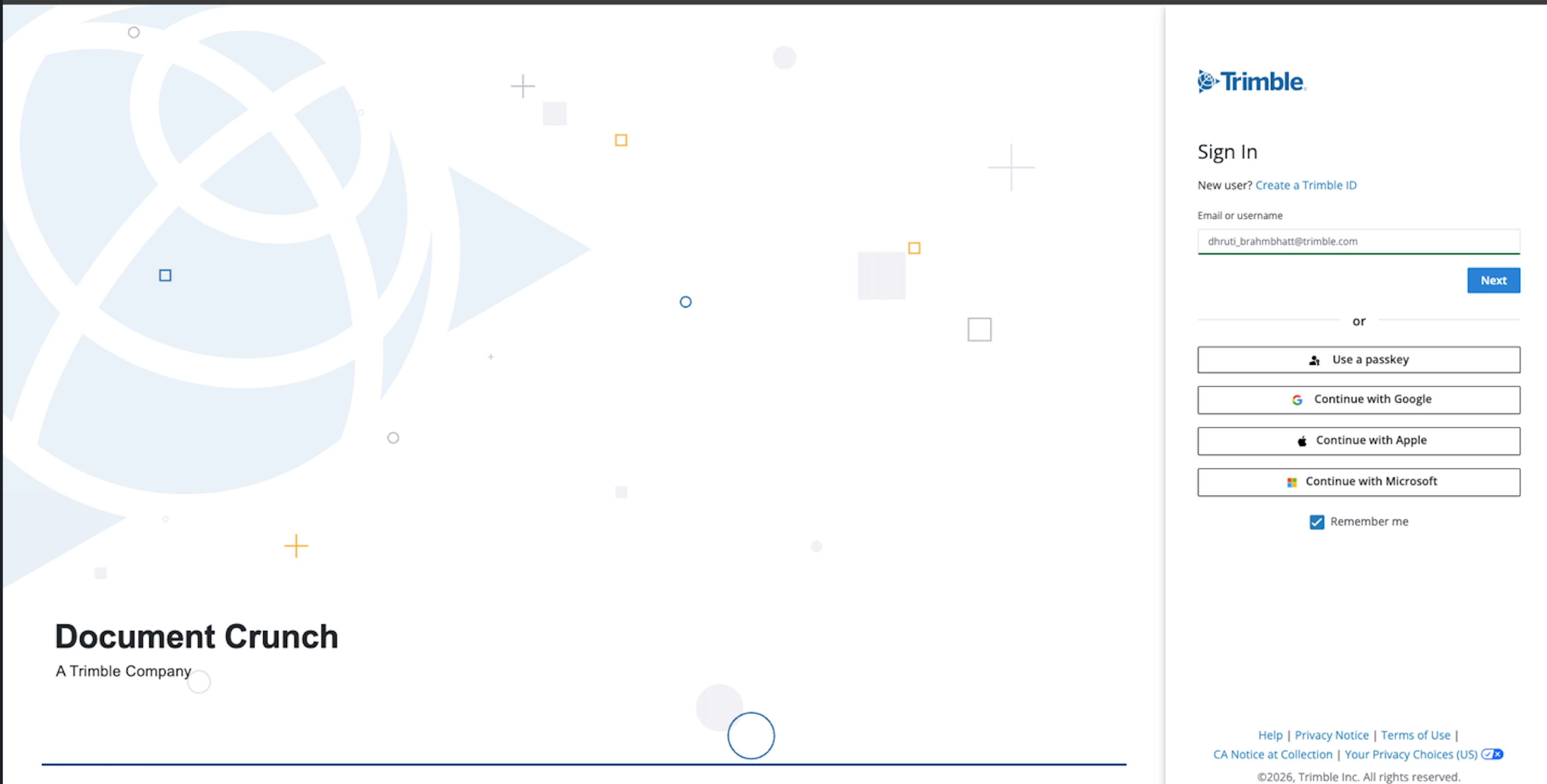
Click Forgot password? to begin the reset.
Enter your email and click Send Code. a. Check your email and enter the verification code to verify your identity. b. Create a new password that meets all requirements (see below), then confirm it.
Note: Your password must contain at least 8 characters, at least 1 number (0–9), at least 1 lowercase letter, at least 1 uppercase letter, and at least 1 special character.
When you see the confirmation message, click the Sign in link. You will also receive a confirmation email that your password was reset.
Return to the Document Crunch login page, click Sign in with Trimble, enter your email and your new password. You are redirected back to Document Crunch and can continue working as normal.
Tip! You only have to reset your password once. After this, you sign in with your Trimble credentials every time.
B. New user: accepting a Document Crunch invitation
Open the invitation email from Trimble Identity (sent from a trimble.com address, on behalf of Document Crunch).
Click the Accept Invitation link. You are taken to the Trimble Identity registration screen.
Enter your name and create a password. Verify your email address if prompted.
After completing Trimble Identity setup, you are redirected to Document Crunch to enter your company role and profile information.
You are now fully onboarded and can access your assigned Document Crunch organization and projects.
Note: The invitation email uses standard Trimble branding, not Document Crunch branding. If you're unsure whether an invitation is legitimate, confirm it came from a trimble.com address and that your team admin expected it.
C. New user: creating a new Trimble ID
If you don't already have a Trimble Identity account, create one from the Document Crunch login page.
On the Document Crunch login page, click Sign in with Trimble.
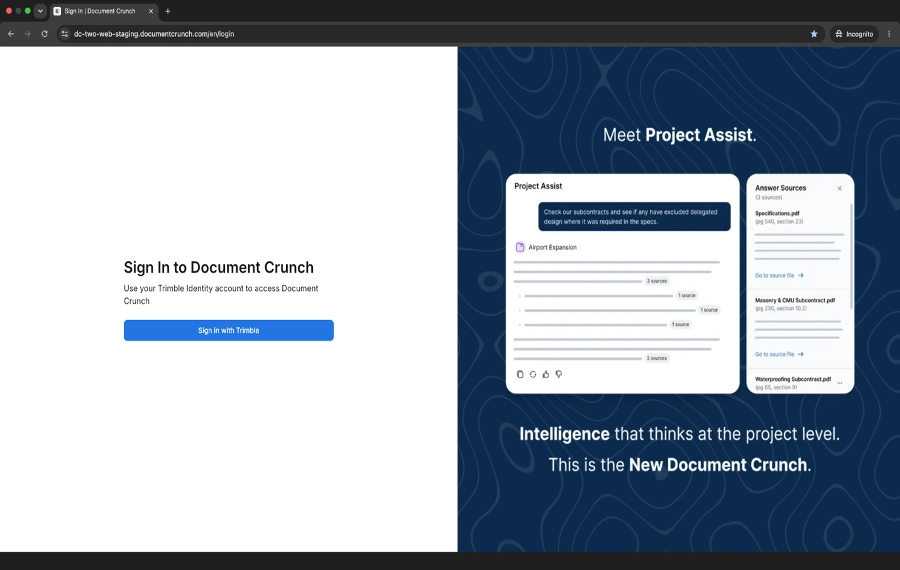
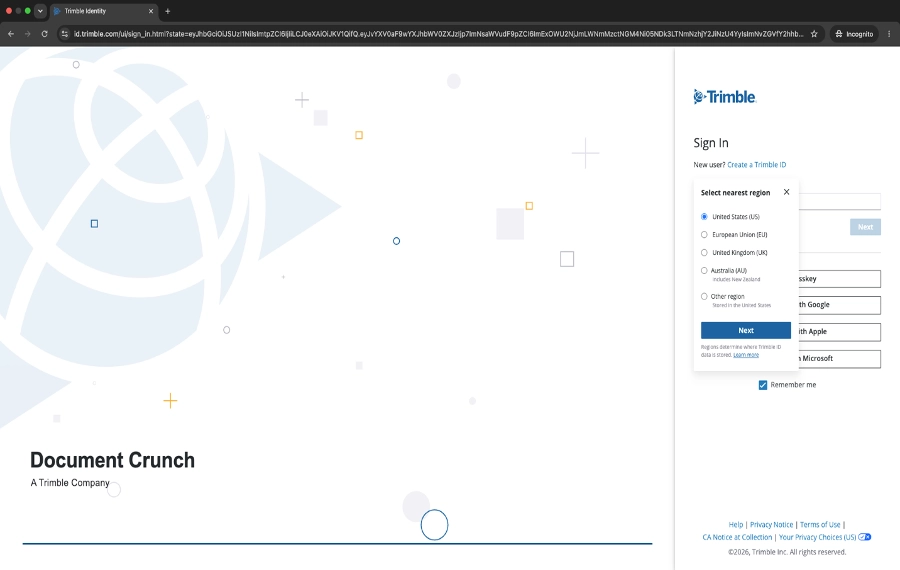
On the Trimble Identity sign-in page, if a cookie consent banner appears, click Accept All.
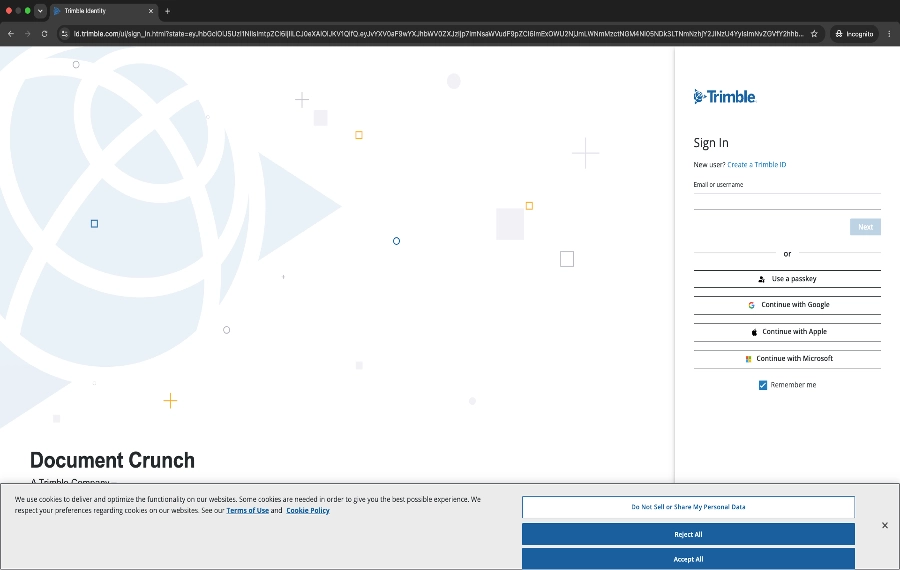
Select your nearest region in the popup — select United States (US) — and click Next.
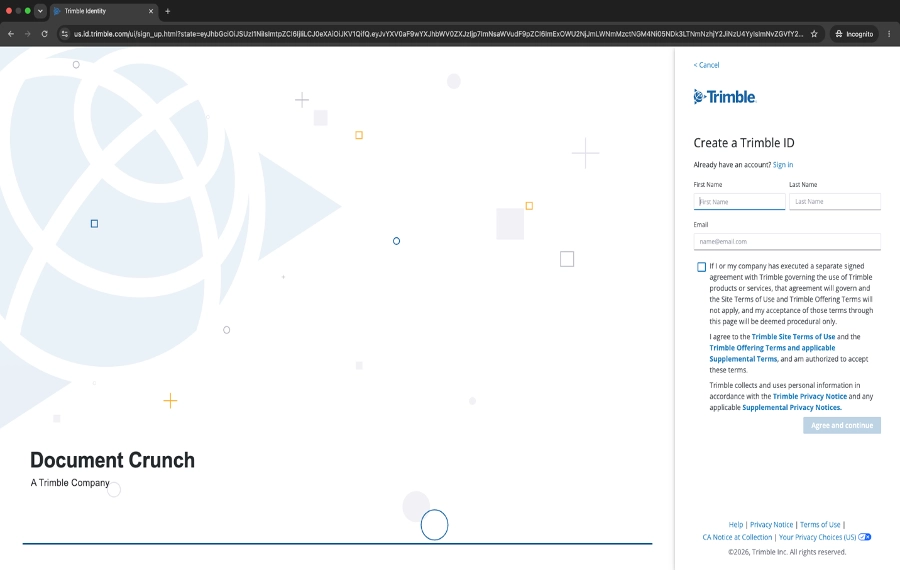
Create a Trimble ID: enter your First Name, Last Name, and Email address. Check the agreement checkbox and click Agree and continue.
Verify your identity: enter the verification code sent to your email and click Submit.
Note: The verification code is sent to your email inbox and expires in 10 minutes.
You'll receive a confirmation email that your account has been created.
Set your password — meet all requirements (8 characters, number, lowercase, uppercase, special character) — and click Continue.
If prompted to set up a passkey, you can click Skip for now to continue without one.
Confirm your account preferences: select your State or Province (this enables the Next button), then click Next to finish setup.
On the Trimble Identity sign-in page, enter your email and click Next, then sign in with your new password to reach Document Crunch.
F. Enterprise SSO customer: migrating to Trimble Identity federated SSO
Your Document Crunch Account Manager and your IT administrator coordinate this migration together.
Document Crunch side (Account Manager):
Your Account Manager identifies your account as an SSO user and initiates contact.
Your IT admin side:
Complete the Trimble Identity Federation request form.
Follow the Trimble federation overview, requirements, and process guide to complete the setup.
For any questions during the process, reach out directly to Trimble's federation team at tidfederations@trimble.com.
Azure AD / Entra ID SAML reference values:
Entity ID:
id.trimble.comReply URL (US):
https://us.id.trimble.com/federation/saml/idpresponseReply URL (EU):
https://eu.id.trimble.com/federation/saml/idpresponseReply URL (UK):
https://uk.id.trimble.com/federation/saml/idpresponseReply URL (AP-AU):
https://ap-au.id.trimble.com/federation/saml/idpresponseAttribute — email:
user.mailAttribute — first name:
user.givennameAttribute — last name:
user.surnameTrimble SP Metadata:
https://id.trimble.com/saml/sp-metadataFederation contact:
tidfederations@trimble.com
Frequently Asked Questions
What is Trimble Identity and why is Document Crunch switching to it? Trimble Identity (TID) is the unified login and access management system used across all Trimble products — including ProjectSight, Trimble Connect, and now Document Crunch. With TID, you no longer need a separate Document Crunch password if you already use other Trimble products. It also enables enterprise SSO and stronger security features like MFA.
Will I lose any of my data or existing projects? No. The change is only to how you log in. All of your existing projects, files, checklists, annotations, and team settings are untouched. Nothing is deleted or migrated — only your authentication method changes.
What do I need to do to keep using Document Crunch after the migration? If you are a non-SSO user, complete a one-time password reset using Forgot Password? on the new Trimble Identity login screen. You'll receive instructions via an in-app notification and this support article beforehand. If you are an SSO user, your Account Manager will contact you to coordinate the transition.
Why does the invitation email come from Trimble, not Document Crunch? New user invitations are sent by Trimble's invitation service, which uses standard Trimble branding. This is intentional — the invitation creates your Trimble Identity account, which then gives you access to Document Crunch. If you're unsure whether an invitation is legitimate, check that it comes from a trimble.com email address and was expected by your team admin.
I already have a Trimble account. Do I need to create a new one? No. If you already have a Trimble Identity account (from ProjectSight, Connect, or another Trimble product), use those same credentials to log in to Document Crunch. Your existing Trimble Identity is linked to your Document Crunch organization automatically.
What happens if I don't reset my password before the migration deadline? If you try to log in after the migration but haven't set up TID credentials yet, you can still complete the Forgot Password? flow on the login page to set your credentials and regain access. Your data will still be there.
Can I still log in with my Document Crunch email and password while the transition is happening? Yes. During the transition period, both the current Document Crunch login and Trimble Identity are active simultaneously. You'll continue to access Document Crunch as normal until your account is switched over. Document Crunch will communicate clearly when your account migration takes place.
Will I need to use Multi-Factor Authentication (MFA)? MFA is supported and encouraged by Trimble Identity. Whether it is required depends on your organization's Trimble Admin Console settings. Enterprise customers with existing MFA policies via SSO/SAML will continue to use their existing MFA.
How does Single Sign-On (SSO) work with Trimble Identity? If your organization uses an enterprise identity provider like Microsoft Azure AD / Entra ID, you can configure a SAML federation so your employees log in to Document Crunch using your company's SSO — no Trimble-specific password needed. Your IT administrator sets this up in Azure AD; Document Crunch's team will send you the configuration values and a step-by-step guide.
What support is available if I run into issues during the transition? You can contact Document Crunch Support directly, and this article includes step-by-step walkthroughs for each scenario. For enterprise SSO issues, your Account Manager can help, or Trimble's federation team can be reached at tidfederations@trimble.com.