Managing Your Email Notifications
Last updated: September 23, 2026
Background
Document Crunch can send a lot of email, especially on busy days. Uploading 50 documents used to mean 50 separate emails. Email notification settings let you choose which emails you get and how often. You can set each event to arrive right away, combine it into one batched email, or turn it off. This keeps your inbox manageable and helps keep our emails out of spam filters, while urgent items like @mentions and task assignments still reach you right away. Notifications inside Document Crunch aren't affected, so you'll still see everything in the app.
Things to Consider
Email only. These settings don't change in-app notifications, which are always on.
Settings are per user. Your changes apply only to your account. There are no admin, organization-level, or per-project settings.
The batch window is fixed at 90 minutes. The first batched event starts the clock, and everything from the next 90 minutes arrives in one email, grouped by project. You can't change the timing yourself.
Read items aren't emailed. If you read a batched notification in the app before the window closes, it's left out of the email.
Overdue task emails are sent once per weekday. They go out Monday through Friday at 7 AM Eastern and continue until the task is completed or closed.
Manual reminders always arrive instantly. When someone sends you a manual reminder for a task or workflow step, you'll get it right away. This can't be changed.
No Slack, Teams, SMS, or daily digest at this time.
Steps
Open your email notification settings in one of these ways:
Notifications tab → click the ⋯ menu → Email notification settings
Your profile icon (bottom left) → My Profile → Email notifications
Click the settings link at the bottom of any notification email
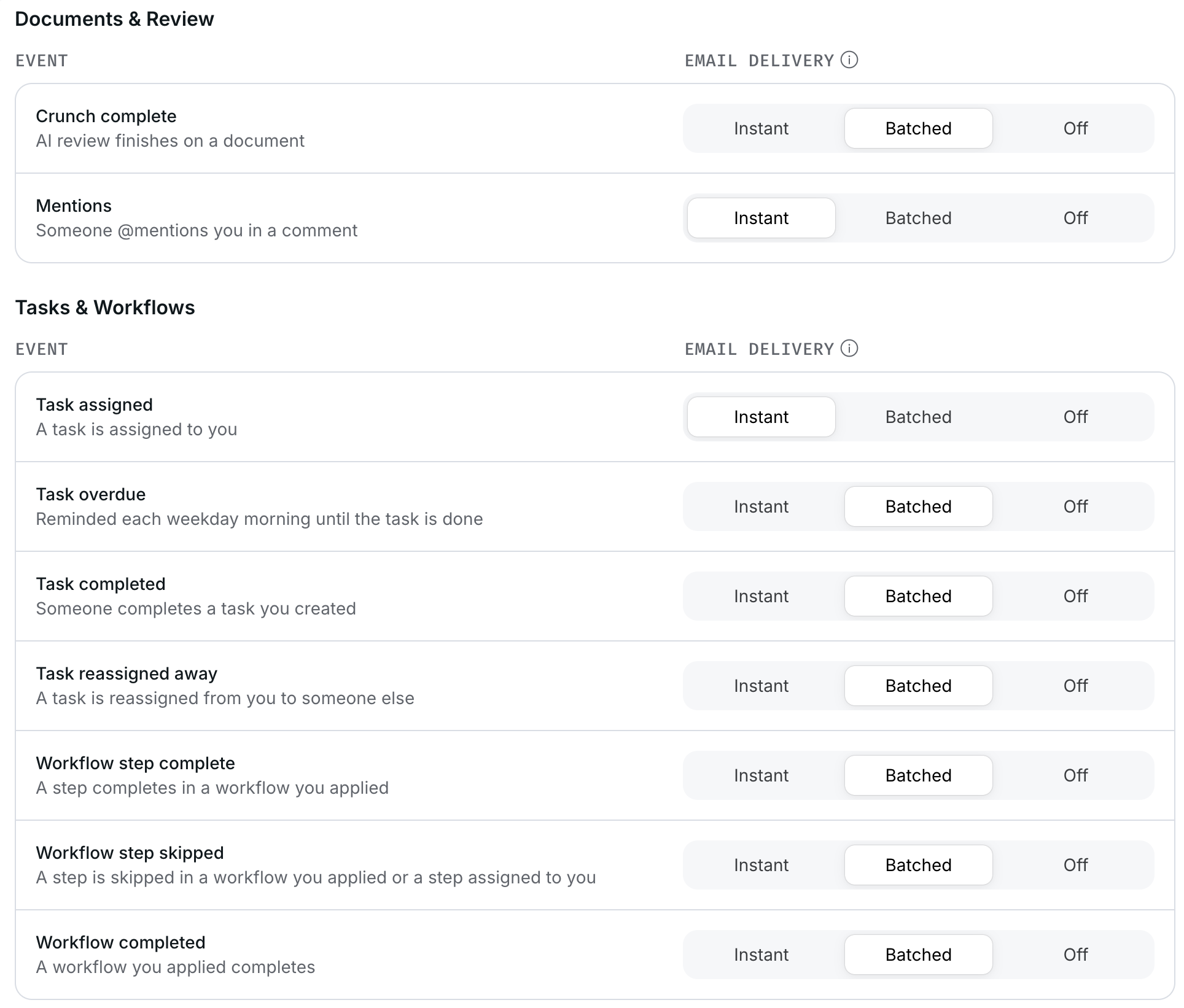
Choose a setting for each event:
Instant: you get an email as soon as it happens.
Batched: you get one combined email covering the last 90 minutes.
Off: you get no email for that event.
(Optional) Turn off every notification email at once with the All email notifications toggle at the top. You'll still see everything in the app.
Click Save changes. To go back to the original settings, click Reset to defaults.
Tips
Busy review days: Set Crunch complete to Batched. If you upload 30 contracts, you'll get one email instead of 30.
Fewer interruptions: Set everything to Batched except Mentions. You'll still hear right away when someone needs you, and everything else comes in one summary.
Quick link: Going to platform.documentcrunch.com/profile/notifications opens this settings page directly.